Showing posts with label fun. Show all posts

Thursday, February 26, 2026

Sitecore Hackathon 2026 Prep: 8 Tips From a Hackathon Vet

Sitecore Hackathon season is back!   After snagging a win with my SPE module (SPExAI) last year and basking in all the glory that comes with it, I'm returning under the Sitecorepunk 2077 banner (with a refreshed logo, too!).

thx NanoBanana

I always encourage annual participation in this event, but for those who haven't experienced it, there are some things worth acknowledging...

The Hackathon is often won before the clock starts.

Putting in some prep work to ensure you're able to spend your time wisely and facilitate smooth development is just as important as the time spent during the 24 hour development marathon.

Here's how I'm prepping for the 2026 Sitecore Hackathon, plus some tips/advice I've been giving a few internal folks at my org who decided to form their own team of three this year.

The "How does it start?" part (because everyone asks)

There's no "opening ceremony" where Akshay descends from the ceiling with a pyrotechnic backdrop and announces: "YOUR CHALLENGE IS...CONTENT GOVERNANCE. GO GO GO!"

In reality, it's all rather...unceremonious:

  1. On the week before or of the event, you'll receive an email from the organizers with your team's GitHub repo (and some general participation / Slack / sharing info). 
  2. About an hour before kickoff (for me that's around 6 PM CT) you'll receive the email containing the year's categories/ideas. They're intentionally open-ended.

    Here are some categories we've seen come through in last few years:
    • Best use of Headless using JSS or .NET
    • Best use of SPE to help Content authors and Marketers
    • The best enhancement to SXA
    • The best enhancement to the Sitecore Admin (XP) for Content Editors & Marketers
    • Best enhancement to SXA Headless
    • Best Enhancement to XM Cloud
    • Best use of AI
    • Best Module for XM/XP or XM Cloud
    • Best Migration Module to move from XP (traditional) to XM Cloud/Content Hub One/Headless CMS
    • Show us what you got!
  3. At 8PM STC / 7 PM CST, the clock starts.

That said, there are several ways you can prepare yourself (at least a little bit) ahead of time.

Not by writing a full submission early based on a guess of what the categories might be (absolutely 100% don't be that team), but by doing everything else that prevents you from wasting 4 of your precious 24 hours on unproductive churn.

Some Prep Philosophy

Hackathon time is for ideation, execution, and shipping. It's not the ideal time for troubleshooting why your local Sitecore installation is failing on step 4...

My practical TL;DR prep advice here is basically:

  • Pick your likely build lane (Traditional XM/XP Module vs SitecoreAI Marketplace vs Sitecore PowerShell Extensions)
  • Pre-flight your local or shared environment 
  • Understand the required deliverables (README + video + submission mechanics; see the bottom of https://sitecorehackathon.org/sitecore-hackathon-2026/
  • Stock the fridge and snack pantry...it's a long 24 hours. 
  • Rest up beforehand...again, it's a long 24 hours.

Let's dive in!


Tip 1: Decide your lane early (classic module vs Marketplace app)

Up until now, choices for Hackathon development were basically limited to a custom C#, SPEAK app, Chrome extension, CLI tool, or SPE module (I'm sure there are other creative options not listed that teams had ran with successfully, though).

The biggest differentiator in 2026, especially compared against previous years, is that the Sitecore Marketplace is now publicly available; including established development patterns and starter kits.


I expect a good chunk of teams are going to build Marketplace apps (which are often just decoupled Next.js apps that interact with Sitecore APIs) since:

  • They're easier to demo
  • Easier to package and install
  • Don't necessarily require a full local "traditional Sitecore" installation to participate.

Someone asked me, "Can I contribute without being deep in Sitecore development?"

Totally. Especially if your team goes the Marketplace route, someone without a whole lot of Sitecore expertise can absolutely contribute towards:

  • API integrations
  • UI/UX/FED
  • Build pipeline + packaging
  • Project/time management
  • Quality assurance/testing
  • Documentation
  • Video production

...all of which can be done without needing a full local XP instance.

You do still need someone on the team to understand the extension points and how the app runs in a hosted SitecoreAI context...but you're not forced into the "I must stand up XP locally or I'm useless" camp.

My likely path this year: Marketplace-first (unless the categories strongly scream for an in-platform module).


Tip 2: Machine/Workspace prep

This is where teams self-eliminate during the early stages of the event. If you prep your machine properly, you can avoid unnecessary setbacks.

GitHub readiness checklist

Personally, I've always made sure to accept the invite as soon as it comes through, clone it locally, and confirm I can push a commit before the Hackathon starts. If you need a check list:

  • Accept the repo invite
  • Clone the repo down locally
  • Confirm you can create a branch
  • Confirm you can push (a tiny "Initial setup and access verified" commit the day before should do) 
  • Confirm you can open a PR (or push directly if your team is living dangerously)
  • Confirm your teammates can do the same

Now you know the pipeline works! No surprises at hour 3 when you're trying to figure out why GitHub thinks you don't exist.

Environment readiness: pick one

You need something you can build against and demo.

Option A: Local Sitecore instance

  • Docker-based XP/XM setup, or an IIS-based instance you trust
  • Verified you can deploy, run, and debug
  • Verified you can install your final deliverable cleanly (this matters more than you think since the judges will need to follow those same steps to test your submission).

Option B: Hosted SitecoreAI org / demo instance

  • Ideal if you're doing Marketplace app work
  • No local XP required
  • You still need stable access, a clean demo space, and time to validate the "deploy, run, test, demo" loop

If your team has access to an existing SitecoreAI org, set up a demo site ASAP and make sure it's accessible to your team.  


Tip 3: Familiarize on Concepts before Hackathon weekend

If you haven't built a Sitecore Marketplace app before, ideally you aren't waiting for the categories email to start reading docs.


My recommendation here is to:

That's really all you need. You don't need to become a Marketplace wizard to be successful. There will be plenty to learn along the way 🙂

Bonus tip: Sitecore's Hackerspace workshop prerequisites from last year's Symposium might be useful in setting up your workspace with the right tools. If you can complete those ahead of time, you should be fine.

https://developers.sitecore.com/learn/getting-started/marketplace/hackerspace-workshop


Tip 4: Prep the whole entry, not just the code

Unfortunately, a good submission isn't just the code.

It's a combination of a:

  • Clean, working solution.
  • Clean, well-documented README.md.
  • Easy to follow installation instructions.
  • Strong video demo (5 minutes or less)
  • Public link(s)
  • Screenshots (optional, but usually worth it)


When you get access to your GitHub repo, carefully review the ENTRYFORM.md and SUBMISSION_REQUIREMENTS.md first and foremost.  Do as it says!

A default README.md will be present in the repo.  Make sure to include all of the necessary sections from the ENTRYFORM.md. It's up to you to make the final README.md impactful. 

Feel free to check out how I formatted my README.md last year - emojis and all 🚀:
https://github.com/Sitecore-Hackathon/2025-Sitecorepunk-2077  

Video: prep the pipeline now

Video production always takes longer than you think. Always.

My past tooling approach has been:

  • OBS Studio for recording (screen + mic) - but you can also do something like a Google Meet or Teams recording to obtain demo footage.
  • Clipchamp / CapCut / whatever for stitching (intro/outro, trimming, music)

If you want to prep similarly, work on prepping the following:

  • OBS installed and tested
  • Mic levels tested (seriously)
  • You know how to crop your capture area
  • You have a YouTube account/channel ready to upload to.
  • You've tested uploading an unlisted video

Music note: obviusly don't use random copyrighted tracks only to discover the audio on your uploaded video is muted - or your upload is flagged.  I've always used my own music to avoid the "surprise, your demo is silent" experience.  Adding music is completely optional...extra credit if anything - but if you're in need of something quick, check out Suno to generate something simple.


Tip 5: Team strategy

I've done Hackathon in a team of three, but most years I'm solo. Both are totally viable.

If you're a team, you can either be wildly effective together...or you can get in each others way for 24 hours.

If you're solo, you can move extremely fast...right up until you realize you also need to write the README, record/edit/upload the video, update X again, and remember your own name.

First tip: assign ownership

Whether you have 1 person or 3, every major deliverable needs a single "owner."

For example, if you're a team of three

  • Builder #1 (project setup, core development): core functionality (the "it works" person)
  • Builder #2 (core development,feature developement, polish): UI/UX, integration glue, edge cases
  • Producer (Ship It): README.md, screenshots, docuementation, install steps, video, final packaging

If you're solo: you'll still need "roles" (you're just time-slicing them instead)

This is my solo approach: I rotate between Builder Gabe and Producer Gabe. If I stay in Builder mode for 20 straight hours, it can easily fall apart toward the end.

Works for both

  • Keep one visible TODO list. If it isn't written down, it doesn't exist.
  • Decide how you merge before you start (PRs vs direct pushes).
  • Get a demo working early.
  • Schedule breaks.

Tip 6: Ideation

People get hung up here: "But we don't know the categories yet...how can we plan?"

While you can't pre-build the final solution, you can pre-build the engine that will help you build during the event.

What I like to do in advance

  • Keep an idea bank of category-flexible utilities
  • Prep reusable scaffolding (config handling, auth patterns, basic UI shell, logging + error display)
  • Think in "building blocks" (reporting/insights, author productivity tools, governance helpers, integrations that reduce friction)

Then when categories arrive, you're not inventing a concept from scratch.


Tip 7: Physical prep

24 hours is a long time. Having the right balance of food, drink, and comfort is crucial.

For me, that's:

  • Drinks (water, caffeine, tea, soda, etc)
  • Snacks that won't wreck you at 3 AM
  • A solid Spotify playlist ready to go
  • Comfortable chair
  • A plan for breaks

(Also, the last couple of years I had worked 10+ hours before the start of the Hackathon. 0/10 would not recommend.)

If you can take the day off and actually rest beforehand, do it. Your 24 hours will be better, your decision-making won't be trash, and your final hour won't feel like you're editing a video underwater.


Tip 8: Build in public

I like documenting my 24 hours on X as a living TODO list + progress log using the #SitecoreHackathon tag.  

I found that this approach helps keep me accountable and motivated throughout the night.  Is it one extra thing to remember to do every hour/couple of hours while trying build?  Sure, but it also serves as a good pausing point to reflect and understand what my next steps are, all with the added benefit of sharing your experience with the community in real-time.  

Plus, you'll end up with built-in material for a post-event recap 😏

Could you use LinkedIn? I guess you could...just don't expect anyone to see it on their feed for 3 weeks...


TL;DR Prep Checklist

1 week before

  • Pick your likely lane (module vs Marketplace)
  • Run the starter kit / sample app
  • Confirm your toolchain is good

48 hours before

  • Repo access confirmed
  • README template ready
  • OBS + video workflow tested
  • YouTube channel ready
  • Check that your development environment is still ready
  • Check Slack for a #hackathon channel to join

Day of

  • Rest
  • Eat
  • Do not do "one last thing" at work for 10 hours

1 hour before kickoff

  • Categories email arrives
  • Brainstorm ideas and pick one
  • Commit to a plan
  • Start building

Final thoughts

There are 32 teams participating this year, which is awesome to see!  The Hackathon is a great opportunity to learn, push yourself, and contribute something useful to the community.  It's also a great excuse to spend 24 hours building something cool and sharing it with the world.

If you're participating this year, drop your team name and which lane you're leaning toward.

Don't forget to capture some team selfies!

Good luck, hackers!

Tuesday, November 11, 2025

Sitecore Symposium 2025: In Pictures

Sitecore Symposium is always one of the highlights of my year. My very first two Symposiums were at the Walt Disney World Swan and Dolphin back in 2018 and 2019, so I was genuinely excited to be headed back to Orlando for a third round now 6 years later.

Now, a post like this is pretty atypical since I usually stick to technical recaps, but this experience and all these pictures had to go somewhere.  What better home to share with you all than here? 😉

Day 1: Monday

I was out the door early in Chicago with a carry-on and the Sitecore-tagged suitcase rolling behind me.

Friday, May 16, 2025

Sitecore Icon Search: 2025 Updates

Sitecore Icon Search recently turned 7! 🎂

Happy Birthday, little app 💖

I'm thrilled to see that it continues to serve the Sitecore developer community worldwide. In just the past month, it saw 191 active users and 152 new users, with the majority coming in through organic search - proof that it still ranks well and fills a need.

The U.S., India, and the Netherlands lead traffic, and even after all these years, developers are still finding their way to it. 

Here's a look at the latest analytics snapshot:


Updates 

In addition to keeping up with annual hosting and domain renewals, I've recently applied some long-overdue visual improvements.  


What’s New?

  • Modernized Styling: Fonts, borders, spacing, and color usage have been cleaned up for a more consistent and modern feel.

  • Improved Layouts: Improved component alignment and padding to help the content breathe, especially at different screen sizes.

  • Refined Search Bar Experience: Improved the search input styling.

  • Cleaned-Up Header: A few stale links were pruned from the top nav. The essentials remain.

  • Dark Mode! It's about time, right?
  • Clipboard Modal Enhancements: Icon copied modal now includes several new random lighthearted titles:

Hopefully, just a better, cleaner experience.

Go to Sitecore Icon Search

Happy Searching! 🔎

Monday, May 20, 2024

Sitecore PowerShell Extensions Text-to-Speech Audio Synthesis Module

Another year, another exciting Sitecore Hackathon!  This round, I flew solo under the moniker "Sitecorepunk 2077" (a play on the critically acclaimed 2020 action role-playing video game "Cyberpunk 2077").


If you're curious how the event unfolded, I documented my progress on X (formerly Twitter) every couple of hours:


Needless to say, I was utterly exhausted and slept for 12 hours straight, following the 32 hours I had been awake.  While I didn't snag a win (congrats, team Cloud Surfers and team 451 Unavailable For Legal Reasons ), I enjoyed the experience, am proud of what I was able to output, and look forward to the next one.


Module Concept and Inspiration

The 2024 Sitecore Hackathon category I chose to work against was "Best Module for XM/XP or XM Cloud" - although the result could also fit the bill for "Best use of AI".  Inspired by the ever-increasing need for accessible content, I decided to develop a module that converts text content into spoken audio files, which are then stored remotely and saved as an MP3 links within the item's context - all from within Sitecore. Ultimately, once I landed on the idea, the goal was to provide an easy-to-use tool for generating audio versions of Sitecore content, thereby enhancing accessibility and improving user engagement for individuals with visual impairments or preferences for audio content.

Features

Here’s a breakdown of what makes the SPE Text-to-Speech Audio Synthesis Module stand out:

Lifelike Speech Synthesis from Microsoft Azure Cognitive AI Speech Services

One of the core features of this module is its ability to convert text content into lifelike speech. By transforming text into life-like speech, the module makes content more accessible to a broader audience, including those with visual impairments and individuals who prefer consuming content through audio.

The module utilizes Microsoft Azure Cognitive Services Speech Service to generate audio from selected text fields dynamically. This integration ensures high-quality, natural-sounding speech output. Whether it's a blog post, news article, or product description, every piece of content can be converted into audio, broadening its reach and enhancing user engagement.

Storage via Azure Blob Storage

To store the generated audio files, the module leverages Azure Blob Storage APIs. Once an audio file is generated and store locally in a temporary directory, it is then uploaded to a dedicated Azure Storage container. The API returns a URL to the audio file, which is then populated in the context page item’s Audio URL field. 


Interface and Custom Ribbon Button

A custom Ribbon Button on the Home tab streamlines the audio-generating process. This button triggers an interactive Sitecore PowerShell Extensions dialog where authors can configure various options, such as voice selection, field selection, and speech rate adjustment, and kick off the speech synthesis generation.


The customizable options ensure the audio output matches the intended tone and speech rate, providing a tailored listening experience.

Multi-Language Support

Recognizing the diverse needs of global users, the module supports multiple languages. For demonstration purposes and within the natural time constraints of the Hackathon, the following languages are supported in the initial implementation:

  • English (en)
  • Japanese (ja-JP)
  • German (de-DE)
  • Danish (da)

Each supported language selection has a series of Neural (lifelike, natural-sounding) voice options from Microsoft Azure Cognitive Services Speech Service (~449 neural voices to choose from). These hand-selected voices are configured to provide the best audio experience for each language. Of course, support can be expanded to include additional languages (there are 136 languages supported by Azure AI Speech Services).  


High-level Technical Breakdown

Initialization and Setup

The script sets up the necessary Azure services and local environment configurations.


User Interaction and Dialog Configuration

The script provides a dynamic interface through a custom Ribbon Button in the Sitecore Content Editor. This button, titled 'Generate Audio' or 'Regenerate Audio' based on the context item’s state, opens a dialog for configuring the audio output.  The fields and options available in the dialog are as follows:

- Field to Convert to Speech
  • Lists all Rich Text Editor (RTE) and multi-line text fields available on the item.
  • Special Case: If the 'Speech Content Override' field is populated, it appears as an additional option.

- Include Title?
  • A standalone radio button to include the item's title in the audio file.

- Voice
  • Dynamic option based on the item's language, the dialog offers preselected AI Neural voices.

- Speech Rate
  • Control the how fast the speech is spoken. 
    • Optional double value, defaulting to 1.0 if left empty.
    • Range: Between 0.5 (slow) and 2.0 (fast).

The dialog properties and user input handling are defined as follows:


Fetching and Sanitizing Text Content

The Invoke-AudioStreamFetch function handles the core functionality of fetching the text content from Sitecore, sanitizing it, and preparing it for conversion into speech.

The function checks if the title should be included and concatenates it with the main text content. It then sanitizes the text by removing HTML tags and special characters, ensuring clean input for the TTS service.


Sending Text to Azure AI for Speech Synthesis

As seen above, the sanitized text is then sent to the speech service endpoint for conversion into an audio file. The response, which contains the audio stream, is saved locally.


Uploading the Audio File to Azure Blob Storage

Once the audio file is generated, it is uploaded to Azure Blob Storage by calling the Upload-FileToAzureStorage function. This function handles the Azure Storage REST API authentication and the file upload process.


Updating Sitecore Item with Audio URL

After uploading the audio file to Azure, the script updates the Sitecore item with the URL of the audio file, ensuring that the content authors can easily access and manage the generated audio files.


Utilizing the Audio File on the Front-end

Once an item's Audio URL field has been populated, it can be used on the front-end within an HTML audio tag:


This is the simplest approach for playing the audio file, but further styling customizations are doable.


Video Demo

Part of the Hackathon Entry includes a video demo. You can check it out below:


Final Thoughts

Participating in the Sitecore Hackathon has always been an exhilarating experience for me, given the time crunch and competitiveness of the community. That night, the development of the SPE Text-to-Speech Audio Synthesis Module pushed my organizational and technical boundaries, and I'm proud of what I could accomplish in such a short timeframe. More importantly, I hope the resulting module helps highlight the importance of accessibility in content management and end-user experiences. 

If you're interested in or inspired to build your own Text-to-Speech synthesis module, the full PowerShell script and documentation are available on Github.

Tuesday, December 6, 2022

Friday, November 4, 2022

DALL-E OpenAI Image Generator for Sitecore

On January 5, 2021, OpenAI revealed DALL-E, an artificial intelligence program that creates images from textual descriptions, on January 5, 2021. It uses a 12-billion parameter training version of the GPT-3 transformer model to interpret the natural language inputs and generate corresponding images. 

Since the initial private beta release, access to DALL-E was limited to those on a waitlist. However, about a month back, on September 28, 2022, DALL-E 2 opened to the public, and the waitlist requirement was lifted. Over the past month, millions of users have explored DALL-E's capabilities using https://labs.openai.com/.

Yesterday, on November 3, 2022, OpenAI announced the DALL-E API, which developers could start immediately consuming. 🤩


DALL·E joins GPT-3, Embeddings, and Codex in our API platform, adding a new building block that developers can use to create novel experiences and applications. All API customers can use the DALL·E API today.
As soon as I heard the news, I couldn't help but immediately explore the API myself. I was already familiar with OpenAI's API playground for text-based AI  prompts and had an existing API key ready. 

My first instinct to consume the DALL-E API was to use plain old Windows PowerShell 🤓

"A photorealistic close-up of a variety of river rocks"

"A super cute puppy"

So dope 😎 - and wildly simple!

DALL-E OpenAI Image Generator for Sitecore

AI-generated images were featured prominently in Paige O'Neill's keynote at the 2022 Sitecore Symposium in Chicago. 

There's real value in this technology. A reality where designers, marketers, and developers who need a patterned backdrop can unleash their creativity to quickly and easily generate an image without needing to license stock images is nearly here. Even in its current state, the ease and simplicity of the DALL-E API make this the perfect candidate for consuming in a CMS.

With the fresh release of the DALL-E API, I couldn't think of a better time to give it a whirl and integrate it into Sitecore. 

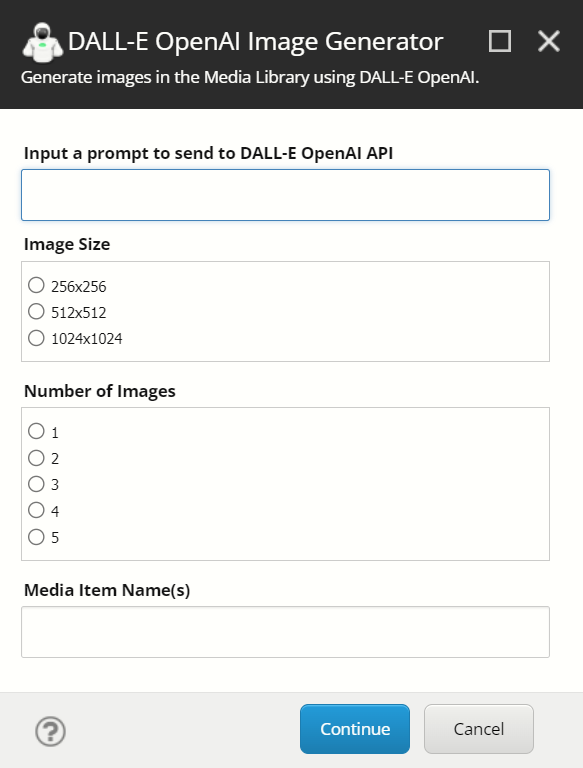
🥁 Introducing...the ✨ DALL-E OpenAI Image Generator for Sitecore ✨ :


The Details

Naturally, Sitecore PowerShell Extensions was the way to go. The 'Context Menu' and 'Insert Item' integration points allow users to open the prompt while targetting any 'Media Folder' - either by right-clicking, expanding Insert, and selecting 'DALL-E OpenAI Image Generator' or selecting 'DALL-E OpenAI Image Generator' from the Folder tab of the active Media Folder.
Both integration points are configured out-of-the-box to only show on items where the Template is a 'Media Folder.'
Once the prompt is toggled, the user can configure their call to the DALL-E API using the following inputs:
  1. A prompt for the DALL-E to interpret.
  2. Image sizing options - restricted to these three sizes at this time: '256x256', '512x512', 'and 1024x1024' (see https://beta.openai.com/docs/api-reference/images/create#images/create-size)
  3. The number of images to generate (DALL-E API allows an integer from 0 to 10. The module limits generation to up to 5)
  4. The base name for new Media Items created in the Media Library after images are generated from DALL-E.


The module also comes bundled with a Settings item located in the following location:
  • /sitecore/system/Modules/PowerShell/Script Library/DALL-E OpenAI Image Generator/OpenAI API Settings
  • {F102AE0D-6A5B-499B-9500-505D0E6F686F}
This item allows users to change or override some default settings - the most important being the 'OpenAI API Key' field, where users must populate their unique API key. after installing the module, You can generate an OpenAI API Key by logging in and navigating to the API Keys settings for your account: https://beta.openai.com/account/api-keys
The Setting item's Template is located in the following location:
  • /sitecore/templates/Modules/DALL-E OpenAI Image Generator
  • {169EE16E-5D44-4CC1-B475-A2DFC8B08A0B}

The Code

The complete source code is available on GitHub, along with the Sitecore package (see https://github.com/strezag/DALL-E-OpenAI-Image-Generator-for-Sitecore/releases) and installation instructions: 
https://github.com/strezag/DALL-E-OpenAI-Image-Generator-for-Sitecore

The module is totally open to any community contributions or general suggestions. Beyond that, feel free to fork a version of your own a build on top of it.

Final Thoughts

I'm really excited about this space and where I believe it's headed. As this technology continues to grow, we should expect an expansion of the DALL-E API (and others) that will almost certainly redefine how we work with digital visual assets.

Enjoy! 🤖

Monday, August 1, 2022

Sitecore Symposium 2022 in Chicago - Tips from an Illinois Native

I'm so excited for Sitecore Symposium 2022 to be hosted in Chicago, the city I grew up and work in! I can't wait to connect with the Sitecore community (in-person 😀), and share some of the city's many offerings with those visiting from out of town. Breaking from my typical technical-centric posts, I wanted this one to contain some of my own tips and recommendations to help prepare and enhance your trip to Chicago this autumn.

Credit: Chait Goli

🚖 Getting Around

Which airport you land in may shape your experience and the cost of transportation to make it into the city. Chicago has two major international airports:

  • O'Hare International Airport
  • Midway International Airport

O'Hare, the larger (and arguably the 'nicer' airport) of the two (~20.5 miles from McCormick Place), is between 26 - 45 minutes (and up to 90 minutes during peak rush hour) to and from Loop, depending on the time of day.  


Midway is closer to the Loop (~10 miles from McCormick Place), coming in at about a 14 - 28 minute drive to/from McCormick Place. 


While you could reach your hotel and McCormick Place through a series of trains and busses, I highly recommend taking an Uber/Lyft or taxi for convenience and speed. Taxis and rideshares are also the way to go if you decide to venture away from the McCormick Place grounds.

🏢 McCormick Place

Located in the "South Loop", McCormick Place is the largest convention center in North America. 

It's absolutely massive and regularly used for annual conventions like the Chicago Auto Show, International Manufacturing Technology Show, Chicago Comic & Entertainment Expo (C2E2), and International Home & Housewares Show. 

From their website:
With over 2.6 million square feet of exhibit space, McCormick Place is the largest and most flexible use convention center in North America. Located on Chicago’s lakefront, just minutes from downtown and facing one of the most iconic skylines in the world, the McCormick Place campus provides world-class facilities that can accommodate just about any event.
You can take a virtual tour ahead of Symposium to help familiarize yourself here: McCormick Place 360° Virtual Tour | Choose Chicago

🍂 Chicago October Weather

Sitecore Symposium 2022 will run in Chicago during mid/late October. While Symposium itself will take place in a temperature-controlled McCormick Place where comfort will be a lesser concern, if and when you venture out into the city you don't want to get caught off-guard by the weather. It could be cloudy and chilly, sunny and warm, windy (particularly closer to the lake), possibly rainy, or a slim chance of snow flurries - all in the same week!

I'm personally hoping for unseasonably high temperatures, but freezing temperatures are not uncommon by mid/late October, so don't forget to pack appropriately! 😇

Here's what you can expect in terms of weather on average during the third week of October: 
  • Sunrise: ~7 AM 🌅
  • Sunset: ~6 PM 🌆
  • High Temp: 62° F (17° C) 🌞
  • Low Temp: 45° F (7° C) 🌚
  • Average Temp: 53° F (12° C) 👍
  • Daily wind average: 12.4 mph (19.9 km/h) 💨 

🌆 Essential Chicago Loop Spots to Visit 

Chicago is a vibrant city with much to offer, and (contrary to the above paragraph) October is a great time to visit.  Cooler temparetures and shorter days mean you can explore without getting too hot or exhausted. At the same time, it's still usually warm enough to enjoy outdoor activities and see the sights if you want to explore beyond McCormick Place. Here are my top picks for first-time visitors.

Travel times are approximate from McCormick Place *

Millennium Park 

Credit: Bhargava Marripati

Millennium Park is located on Michigan Avenue between Washington Street and Columbus Drive. 


This park is home to some of Chicago's most iconic art installations, including Cloud Gate (a.k.a. the "Bean") and Crown Fountain, an interactive work of art and video sculpture. 


  • 💵 Price: Free 
  • 🚕 Uber/Lyft/Taxi: ~ 8 to 10 min ($10 - $25)
  • 🚶‍♀️ Walk: 45 min 

Buckingham Fountain

Credit: Petr Kratochvil
Buckingham Fountain (or The Clarence Buckingham Memorial Fountain as it is formally known) is located in the center of Grant Park between Queen's Landing and Ida B. Wells Drive, just an 8-10 minute walk southeast of Millenium Park.


Built in 1927, Buckingham Fountain is one of the largest fountains in the world and remains one of the most popular spots in Chicago for tourists and locals alike due to its stunning beauty and incredible views of Lake Michigan and the city skyline.

The fountain is typically operated from early May through mid-October, depending on the weather, so there is a chance that the water may not be flowing. That's OK! The views of the city and lake from the fountain grounds are spectacular and worth the visit. 

  • 💵 Price: Free 
  • 🚕 Uber/Lyft/Taxi: ~8 to 10 min ($10 - $25)
  • 🚶‍♀️ Walk: 45 min 

The Skydeck at Willis Tower 


Credit: Jared VanderMeer
Credit: Amit Thakral

Once holding the title of the largest building in the world, the Willis Tower (formally Sears Tower - which natives still often refer to it as) is one of the most iconic sights in Chicago. It's located on the western edge of Chicago's Loop.


The SkyDeck / The Ledge , after a quick 90-second elevator ride (that's 16 feet per second!), presents a breath-taking 360-degree view of The Windy City from 1,353 feet up in the air.

Given that this is one of Chicago's most popular tourist attractions, it's highly recommended that you purchase tickets in advance. They offer a couple of pricing options that range from $35 (Skydeck General Admission) to $64 (Skydeck Expedited Entry).

  • 💵 Price: $35 - $65 
  • 🚕 Uber/Lyft/Taxi: ~8 to 10 min  ($11 - $25)
  • 🚶‍♀️ Walk: 1 hour

Navy Pier 

Credit: Pixabay

A bit farther from McCormick (but well worth the 20-minute rideshare or taxi ride), Navy Pier is one of Chicago's top attractions, for good reasons. From its many restaurants and bars (including the iconic Giordanos and their deep-dish pizza) to the Centennial Wheel in Pier Park that offers a year-round bird's eye view of Lake Michigan and the skyline, Navy Pier has a little something for everyone.


  • 💵 Price: Free
  • 🚕 Uber/Lyft/Taxi: 15 to 20 min ($15 - $30)
  • 🚶‍♀️ Walk: 🚷

Guided Tours 

If you plan to spend a few extra days here before or after Symposium and have some proper downtime to explore the city, consider a guided tour to soak in the sights. You can opt for walking, biking, Segway, double-decker bus, or boat tours. Whether you're into ghosts (it is 'Spooky Season,' after all), food, art, architecture, or sports, there's sure to be a tour for you. You can find more information about tour options here: 

Walking Tours

Segway Tours

Bus Tours

Boat


Final Thoughts

There is certainly no shortage of famous sights and hidden gems to explore throughout Chicago, so plan ahead to ensure you don't miss out on all this beautiful city has to offer. From the great (freeeee!) public spaces to the many incredible museums, restaurants, art installations, and historical sites, you're bound to find something that fits your taste, budget, and schedule. 

For more advice while in town, feel free to reach out. 

See you there!

Monday, October 19, 2020

Desktop Notifications for New Questions on Sitecore Stack Exchange using PowerShell + BurntToast + Windows Task Scheduler


If you're looking for ways to become more proactive in the Sitecore community, one great way to gain traction and potentially make a real impact is to help answer questions on the Sitecore Stack Exchange. You can give yourself opportunities to contribute to the platform by being one of the first users to read and potentially respond to new questions posted on the platform by setting up an alert that notifies you when a new question has been asked. 

Friday, July 31, 2020

Generate Google Lighthouse Reports with Docker using PowerShell


While browsing Docker Hub, I came across this nifty Google Lighthouse Docker image (by Jay Moulin) which allows you to execute a Lighthouse audit against a given URL in a containerized application - made possible by the Google Chrome Headless Docker base image.  From a practical standpoint, this feels more reliable than running Lighthouse in the Chrome browser where extensions and other variables can easily interfere with the results of the audit. 

You can check out the Dockerfile for this image here: 

Consuming it is pretty straightforward.  With Docker installed and running while switched to Linux containers, two commands are all you need:


Additional options for the Lighthouse audit, like controlling the emulated device form factor (mobile vs. desktop), controlling the throttling method (devtools, provided, simulate), or defining specific categories (Accessibility, Best Practices, Performance, PWA, or SEO) can be included after the URL.
 
However, that's quite a bit of text to remember, and memorizing a bunch of Lighthouse CLI options are not something I see myself doing.  😋 

BUT - we can make this tool more approachable by wrapping it in a PowerShell script. 😍

The name of the game is simplicity: execute .\LighthouseReport.ps1 from a PowerShell terminal, pass in a URL/standard Lighthouse options, and let it run. 


👨‍💻 A Little PowerShell

In a new PowerShell file, we'll add a mandatory string parameter called $Url
We'll also include non-mandatory string parameters:
  • $FormFactor
    • Valid options for the '--emulated-form-factor=' flag are 'none', 'desktop', or 'mobile'. 

    • Default value when no parameter is provided will be 'desktop'

  • $Throttling
    • Valid options for the '--throttling-method=' flag are 'devtools', 'provided', or 'simulate'. 

    • Default value when no parameter is provided will be 'provided.'

  • $Categories (array of strings)
    • Valid options for the '--only-categories=' flag are 'accessibility', 'best-practices', 'performance', 'pwa', 'seo'. 

    • Default value when no parameter is provided will a comma-delimited string of all applicable categories 'accessibility,best-practices,performance,pwa,seo'

  • $DestinationPath
    • The local path to where the report will be 'dropped.' (used as a volume mapping to the container's '/home/chrome/reports' directory)

    • Default value when no parameter is provided will be "C:/lighthouse"

We'll add the docker pull command for femtopixel/google-lighthouse first.  During the initial execution of the script,  all required images will be downloaded from Docker Hub.  If your image becomes stale or a newer version is available, this will automatically update the image. 

Then add the docker run command with the -v flag to mount a volume to map the local $DestinationPath to the /home/chrome/reports directory on the container. Include the $URL parameter at the end, and all options following:


When the docker run command is executed, Docker will take over, and Lighthouse will begin to execute on the container. Once completed, a .html file will be available in the $DestinationPath

To take it a step further, we can open the $DestinationPath in Windows Explorer by using an Invoke-Item command:


If we want to open the .html report, we can set the PowerShell location to the $DestinationPath, followed by an Invoke-Item where we pass in Get-ChildItem latest .html file.


Simple - yet effective!

🏁 Final Script


⌨ Example Usage

Desktop form factor auditing all categories:


Desktop form factor auditing Best Practices, Performance and SEO only:


Mobile form factor auditing Performance only:


💡 TIP: When setting a parameter (-FormFactor, -Throttling, -Categories), you can use Ctrl+Space to display valid options and hit enter to select it.


👍 Result


🙌 Feel free to grab a copy and modify it to your liking.