Showing posts with label sql. Show all posts

Wednesday, July 22, 2020

Approaches to Dockerizing Existing Sitecore Solutions for Local Development


As a developer at a digital agency working in Managed Services, I work with multiple customers spanning multiple versions of Sitecore. The client sites, more often than not, are inherited from vendors outside of reach - each with a unique set of onboarding steps and requirements.

Thursday, May 21, 2020

Part II - Integrating Automated Reverse Azure Database Migration PowerShell Script into Azure DevOps


In my last post, we wrote a handy PowerShell script that takes the latest Master and Web SQL Databases from a Production-level Azure Resource Group and imports them into a Staging/UAT/Dev Azure Resource Group for a seamless reverse database promotion process.  

The original script, however, relies on a developer to run the script manually on a local machine and authenticate their credentials in order to utilize the AzureRm commands:

We can take this script a step further and integrate it as a new stage in the existing Azure DevOps Release Pipeline, or as a new dedicated Release Pipeline that can be executed independently.

In this example, we will create a new Azure DevOps Release Pipeline.  We'll assume a Service Principle connection already exists (which is likely if you're deploying to your App Services using Azure DevOps already) and you have the proper administrator permissions to create pipelines in Azure DevOps.   We'll also be working with an Inline Azure PowerShell script job instead of including a script file from an artifact.  Steps will slightly differ if you want to go that route, but the concept would remain the same. 

Release Pipeline Setup


Head over to the Pipelines > Release dashboard, click the New dropdown and select New release pipeline.


In the 'Select a template' menu, click 'Empty job'.

Modify the Pipeline name, then click on Stage 1 and click the plus sign on Agent job to add a new agent.  Search for 'powershell', find Azure PowerShell task and click the Add button


Set the Azure Subscription to the appropriate service principle, set the Script Type to Inline Script, and set the Azure PowerShell Version to Latest installed version


Save the pipeline and navigate to the Variables section

Variable Setup

Here, we'll add all the variables that we'll consume in the script - allowing for future modification without touching the script code itself.  

In our case, our script calls for the following variables: 
  • - sourceResourceGroupName
  • - sourceSqlServerName
  • - sourceMasterDbName
  • - sourceWebDbName

  • - targetResourceGroupName
  • - targetSqlServerName
  • - targetSqlServerAdminUserName
  • - targetSqlServerAdminUserPassword
  • - targetMasterDbName
  • - targetMasterSqlUserPassword
  • - targetWebDbName
  • - targetWebSqlUserPassword
  • - targetCdServerName
  • - targetCmServerName


Script Modifications


Luckily, our original script doesn't need too much tinkering! Just a bit 😉 

First, we'll want to remove the Login-AzureRmAccount command altogether since the Azure PowerShell task in the pipeline will authenticate off of the service principle.
 
We'll then replace any hardcoded variables with their new corresponding variables we previously configured throughout the script using the $env:someVariableName format:

We'll finish this off by placing the modified script in the Inline Script field of our Azure PowerShell task.


Tuesday, April 21, 2020

Automate Reverse Azure Database Migrations using PowerShell


Working with Production-level content in lower environments (eg. DEV or UAT) is important for ongoing development and testing.  Depending on your item serialization/source control approach, keeping content in sync can be a challenge.

Using Unicorn or TDS for templates and layouts is common, but source-controlling all content (specifically media items) can bring a lot of weight to the project.  In lieu of utilizing serialization technologies or a synchronization tool such as Razl to synchronize content (which I've seen take hours to complete depending on the content load), a common approach is to periodically restore the Master/Web Databases from a Production environment down to lower environments.

In an Azure PaaS setup, without any automation or scripting, this manual process may look like this:

1) Log in to Azure Portal

2) Navigate to the source (production) SQL server instance's Master/Web database

3) Click the copy button and set up the database copy operation configuration (target database name, target server, and pricing tier)

5) Execute the copy operation and wait for the copied database to become available.

6) Log into the target SQL Server instance using SQL Server Management Studio or use the  SQL Database Query Editor built into Azure Portal, and execute an ALTER USER query to reset the login password to match the original database passwords

7) Rename the currently connected Master/Web database to include a suffix in the name (eg. _OLD)

8) Rename the copied Master/Web database to use the original Master/Web database name

9) Restart the server

Obviously, this process can vary and is generally a tedious and time-consuming process.

Luckily, Azure resources can be managed using the suite of PowerShell commands without ever needing to access the UI.  With the right script, the strain of manually executing these steps can be alleviated.

To use these commands, the Azure PowerShell Module must be installed.

For our scenario, let's assume the following:
1) PROD environment is in a separate Resource Group than the NON-PROD environment

2) While the Master database should suffice, we'll also copy down the Web database to avoid requiring a publishing operation after the script has completed.

3) ConnectionString.config value should not require modification.

4) A short "outage" of the NON-PROD environment will occur during the process since the connected database will be renamed to make room for the copy.

Let's Script It

Step 1 - Define Target and Source Variables

We need to define our target and source variables including source/target Resource Group Names, SQL server names, database names, and NON-PROD environment SQL Admin Credentials.


Step 2 -  Invoke Azure Login Process

This command will invoke the login process to a specific subscription ID. The user will be prompted to log in.


Step 3 -  Rename the currently connected database to make room for the copied database

Since the name of the database on the NON-PROD environment should remain constant, this command will rename the existing NON-PROD database to include a unique dated suffix. Note that this database will not be removed automatically and can be used as a backup in the case that the NON-PROD environment contained content that was not accounted for or backed-up prior to the migration.  Removing it will be up to you.


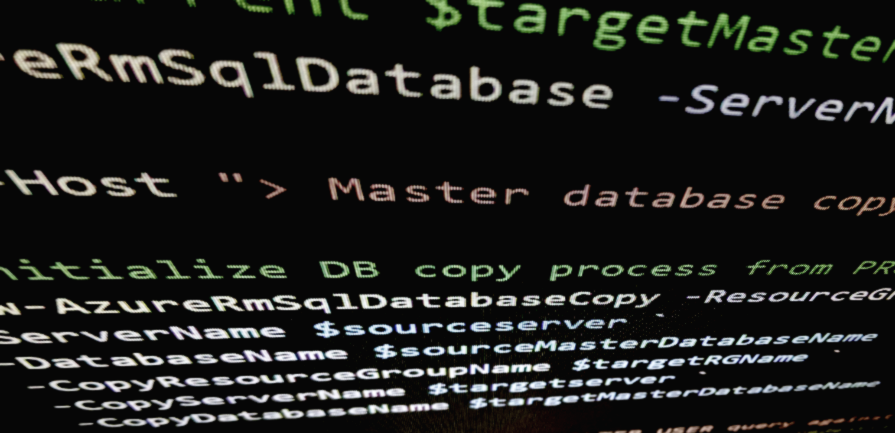
Step 4 -  Initialize the database copy operation

Once the name of the database is available on the target SQL server, the following command will execute the database copy process.

Step 5 - Execute the ALTER USER query

Since the database login from the source database comes with the process of a direct copy, an ALTER LOGIN query must be executed against the database to reset the [masteruser] or [webuser] passwords to match what's in the NON-PROD ConnectionStrings.config.


Step 6 - Restart the App Service

When the copy operation is completed, restarting both App Services will ensure a fresh connection to the databases is established.


Final Script


Monday, August 28, 2017

Sitecore Text Searcher - The Ultimate SQL Script

"Where can I edit this text in Sitecore?"
"Can you find out where this content can be changed in Sitecore? 
"I tried changing this content in Sitecore here, but it's not reflecting on the front-end after I publish." 

I hear that a lot.  

When maintaining multiple Sitecore solutions - knowing every template, rendering, and how the data ties in to what you see on the front-end - is nearly impossible.   Prior to Helix, developers were free to develop using various patterns. Some are built in MVC, others are WebForms.  Some components rely on datasource items, others rely on data from the items template. Regardless of architecture, we need to be able to help Content Authors change content if they can't find what they're looking to change.

There are typically a few options to obtain the information for the Content Author's request:

     - If you have access to the solution - inspect the page elements, grab a common class or id, do a Entire Solution search, find some files and follow the code to determine how it populates the component.

     - Start with the page item in Sitecore and determine whether the content is located on the item's template, or in within a data source item.

Those options are both fine - and eventually effective - but there is a faster way - IF YOU HAVE ACCESS TO SQL (which is normally the case if you have a recent DB locally or access to the DB server).

Simply start a new query in SQL MS on the Sitecore DB you want to search in (Web or Master),  modify the @SEARCHTERM variable (include the percent symbols eg. '%content goes here%'), and execute this handy script:


DECLARE @SITECOREROOTID NVARCHAR(MAX), @FULLPATHSEARCH NVARCHAR(MAX), @SEARCHTERM NVARCHAR(MAX)

SET @SITECOREROOTID = '11111111-1111-1111-1111-111111111111';
SET @FULLPATHSEARCH = 'sitecore/content/%';
SET @SEARCHTERM = '%search term%';

WITH FullPathItems (ID, NAME, ITEMPATH, TEMPLATEID)
    
AS (SELECT ID,
                
NAME,
                
CAST(NAME AS NVARCHAR(MAX)) AS itempath,
                
TEMPLATEID
        
FROM   [dbo].ITEMS
        
WHERE  ID = @SITECOREROOTID
        
UNION ALL
        
SELECT i.ID,
                
i.NAME,
                
CAST(( ITEMPATH + '/' + i.NAME ) AS NVARCHAR(MAX)) AS itempath,
                
i.TEMPLATEID
        
FROM   [dbo].ITEMS i
                
INNER JOIN FullPathItems a
                        
ON i.PARENTID = a.ID)
                        
SELECT fieldsX.ITEMID,
      
fpi.NAME AS ITEMNAME,
      
fieldsX.VALUE,
      
fpi.TEMPLATEID AS TEMPLATEID,
      
templatesX.NAME AS TEMPLATENAME,
      
ITEMPATH,
      
fieldsX.FIELDID,
      
itemsX.NAME AS FIELDNAME,
      
fieldsX.LANGUAGE  AS ITEMLANGUAGE 

       FROM   [dbo].[FIELDS] fieldsX
      
INNER JOIN FullPathItems fpi
              
ON fpi.ID = fieldsX.ITEMID
      
INNER JOIN [dbo].ITEMS itemsX
              
ON itemsX.ID = fieldsX.FIELDID
      
INNER JOIN [dbo].ITEMS templatesX
              
ON templatesX.ID = fpi.TEMPLATEID

WHERE fieldsX.VALUE LIKE @SEARCHTERM 
AND fpi.ITEMPATH LIKE @FULLPATHSEARCH

/*INCLUDE  THE FOLLOWING LINE TO INCLUDE ITEM ID CONDITION */
-- AND fieldsX.ItemId = 'B3F15B8C-BAE5-40F4-A139-BA7B3EC6E1ED'

/*INCLUDE THE FOLLOWING LINE TO INCLUDE ITEM NAME CONDITION */
-- AND fpi.Name LIKE '%My Item%'

/* INCLUDE THE FOLLOWING LINE TO INCLUDE TEMPLATE NAME CONDITION */
--AND templatesX.Name = 'My Template'

/* INCLUDE THE FOLLOWING LINE TO ADD LANGUAGE CONDITION */
-- AND fieldsX.Language = 'en-US'


ORDER  BY fpi.ITEMPATH


The result includes the following columns:

Sometimes, you'll be presented with several instances of a specific keyword, in which case you can uncomment various lines near the bottom of the script to drill down and filter the results even further.

I find myself using this script on a daily basis and hope that sharing this script helps others track down content quickly and effectively, too.